
When something in a shipped build looks wrong, “which resource changed?” is often the first question. Maybe an icon reverted to an older version, a version-info string is stale, or a localization pass quietly dropped a menu caption. Comparing the two binaries by hand is slow and easy to get wrong.
Resource Builder can compare the resources in two EXE and DLL files and show you exactly what was added, changed, or removed, with no manual unpacking. In the GUI the same comparison also covers compiled .res files, .rc scripts, and .NET .resx / .resources files; the command-line tool handles the native formats. Typical uses:
- A regression check before a release: compare the new build against the last known-good one.
- Localization QA: confirm a translated build still has every string and dialog the base build has.
- Auditing a third-party DLL: see what its resources actually contain, and what changed between two versions of it.
What you can compare
The GUI Compare… dialog compares your currently open project against another file on disk:
- If your project is a native resource script or resource file, you can compare it against another .rc script, a compiled .res file, or an executable (.exe / .dll).
- If your project is a .NET resource file (.resx / .resources), you can only compare it against another .resx / .resources file. Compare diffs the same kind of collection over time, not one format against another, so a mismatched file type is rejected with a clear message.
The comparison always reflects the current in-memory state of your project, including unsaved edits, not just what was last written to disk.
Comparing EXE and DLL resources in the GUI
- Open the file you want to treat as the baseline, or the file you are checking. Either side can be the open project; Compare shows what the other file adds, changes, or removes relative to it.
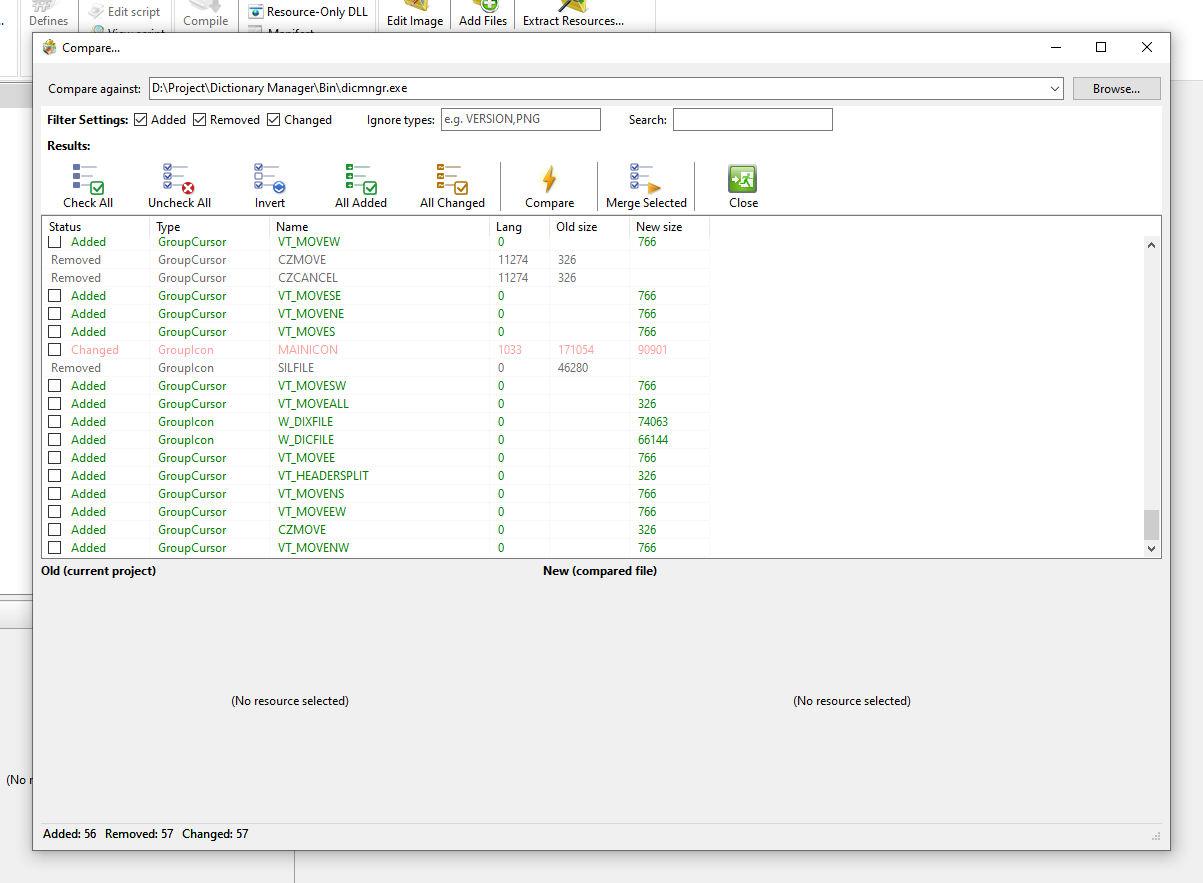
- Choose File > Compare…, or on the ribbon, Project > Import > Compare….
- Pick the other file in the dialog. For an .exe or .dll, that is just the binary itself, no extraction step.
Reading the results
Every difference is listed and color-coded as Added, Changed, or Removed:
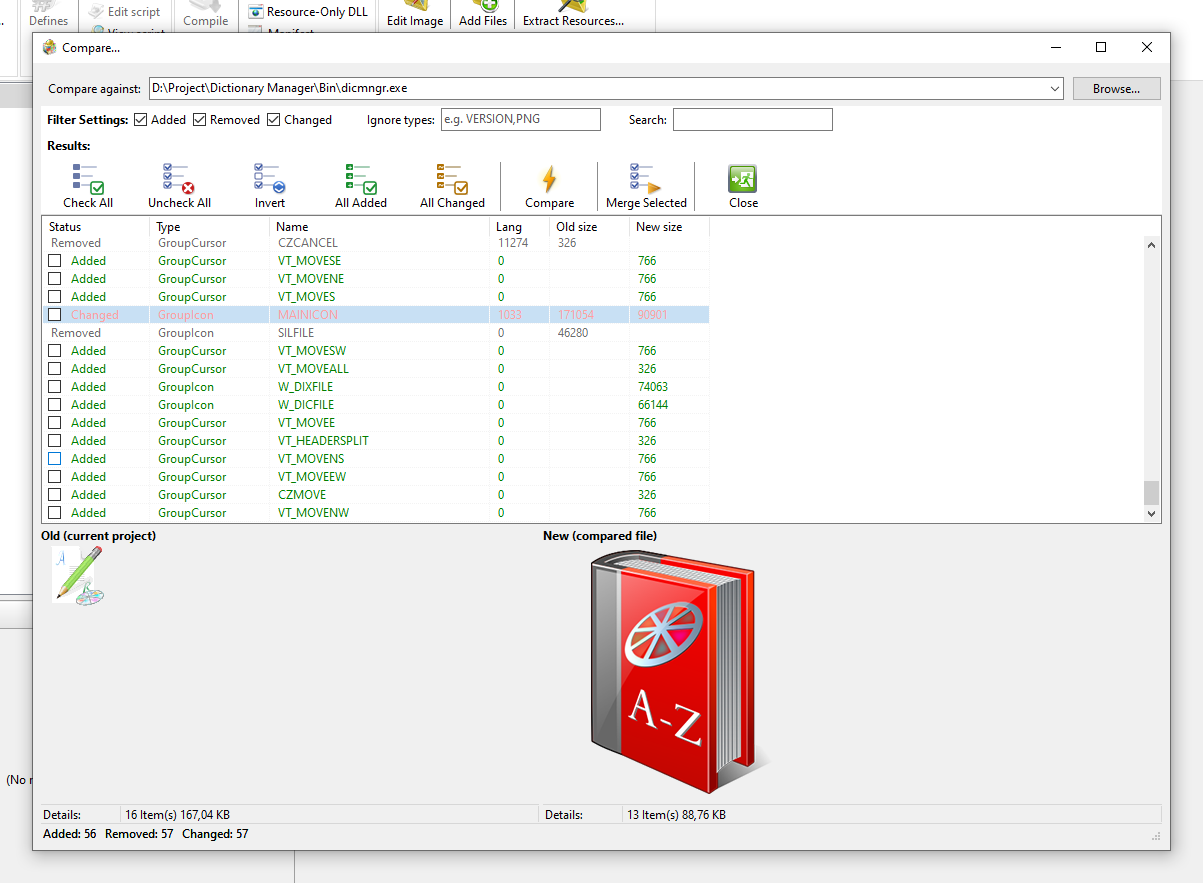
- A multi-size icon or cursor appears as a single combined row, the same way the main project tree shows it, rather than one row per size.
- Selecting a row shows the old and new versions side by side in the preview panes, so you can see exactly what differs. For a changed STRINGTABLE bundle, the preview shows the full text of both versions.
- Use the filter toggles and the search box to narrow the list, and the Check All / Uncheck All / Invert / All Added / All Changed buttons to select rows quickly.
Merging differences back into your project
Check the Added and Changed rows you want and click Merge:
- Added rows are inserted into your project as new resources.
- Changed rows replace the existing resource’s data in place.
- Removed rows are informational only and have no checkbox. Merge never deletes anything from your project.
This makes Compare useful as a pull-in tool as well as a check: when two builds diverged, you can bring across just the resources that changed and leave everything else alone.
The STRINGTABLE byte-difference quirk
One thing not to be alarmed by: when you compare against a file whose STRINGTABLE resources were built by a different compiler or tool, a bundle can show as Changed by a couple of bytes even though every string in it reads identically in the preview. Different compilers encode the trailing empty slot at the end of a 16-string bundle differently. It is not a real content difference. If you need a scripted check that breaks the bundle down to individual strings, use the -parsestringtable option of the command-line tool below.
Comparing from the command line
sircc64.exe -diff file1 file2Each of file1 and file2 may be an .exe, .dll, .res, or .rc source file. It prints a text diff report. -diff always takes exactly two files and does not accept wildcards.
Options:
Option
Effect
-ignoretype TYPE[,TYPE…]
Exclude whole resource types from the diff. Accepts well-known RT_* names (ICON, BITMAP, VERSION, …) or a literal custom type name (PNG, SVG).
-nochanges
Skip content comparison. Report only added and removed resources, never “changed”.
-failmissing
-parsestringtable
Also diff individual strings inside STRINGTABLE bundles, not just the bundle’s hash.
-failonmissingstring
With -parsestringtable, set exit code 1 if an individual string was dropped from a bundle.
Exit codes: 0 success, 1 error, and for -diff also 1 whenever -failmissing or -failonmissingstring trigger.
Example: fail a build if resources went missing
sircc64.exe -diff last-good\App.exe build\App.exe -failmissing -parsestringtable -failonmissingstring
if errorlevel 1 (
  echo Resource regression detected
  exit /b 1
)
That check passes only if the new build still has every resource and every string table entry the last known-good build had. Wiring this into a CI pipeline in more depth, including comparing against a committed baseline and reporting into the build log, is covered in a separate article.
Try it
Resource Builder is a commercial tool with a free 30-day trial. Download it from the Download page, open any build, and run Compare… against a previous version.